The camera that warns the driver first.
Three camera channels watch the road and the cab. Detection runs on the camera, so the driver hears a voice alert in the moment. You see the event in your dashboard with the clip.
No driver appWorks alongside your ELD
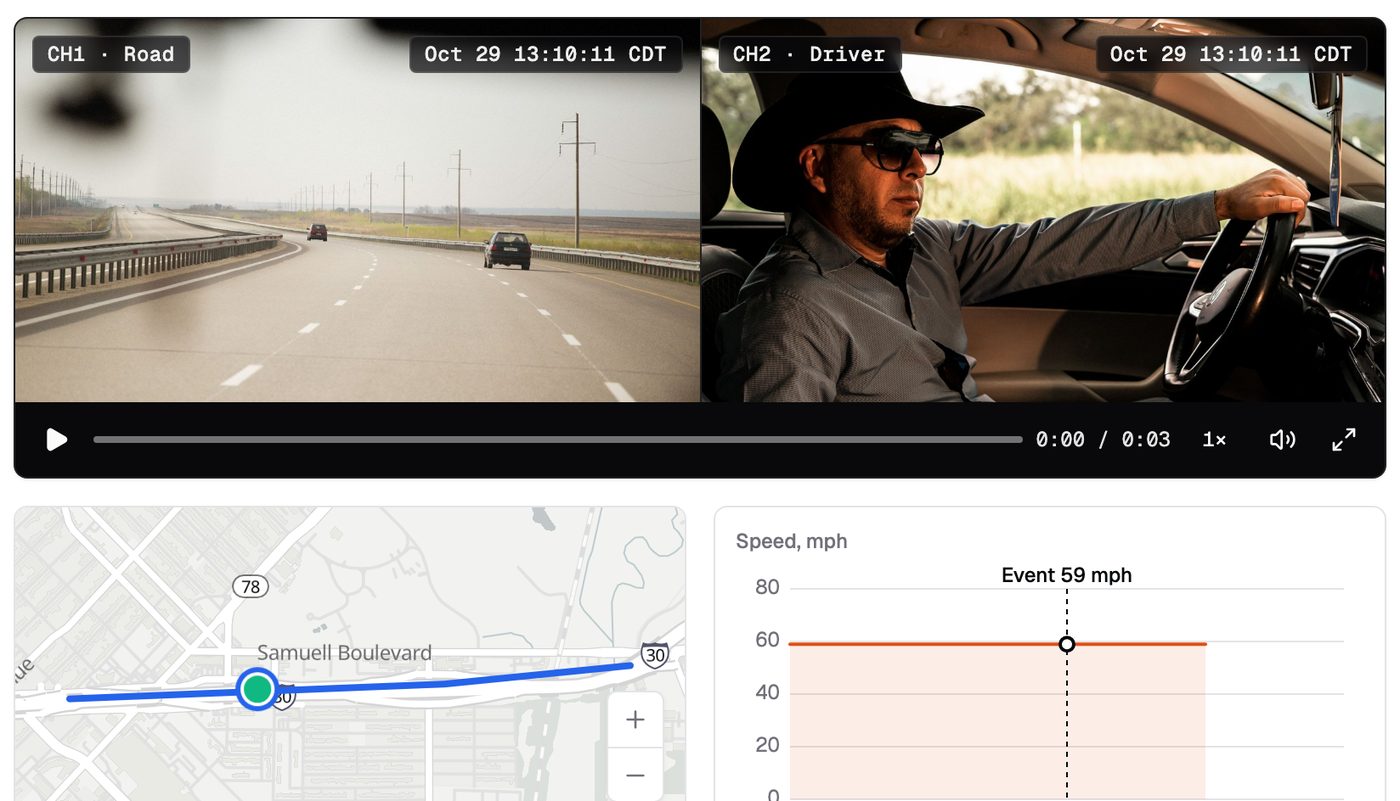
Road, driver and a third camera
One dash cam covers three channels. It connects over 4G LTE, tracks GPS, and records to its own SD card.
- Road-facing camera. Sees what the driver sees through the windshield.
- Driver-facing camera. Watches the cab for distraction, phone use and fatigue.
- Auxiliary camera. A third channel for the side, the rear or the trailer doors.
- SD card on board. The camera keeps recording when signal drops.
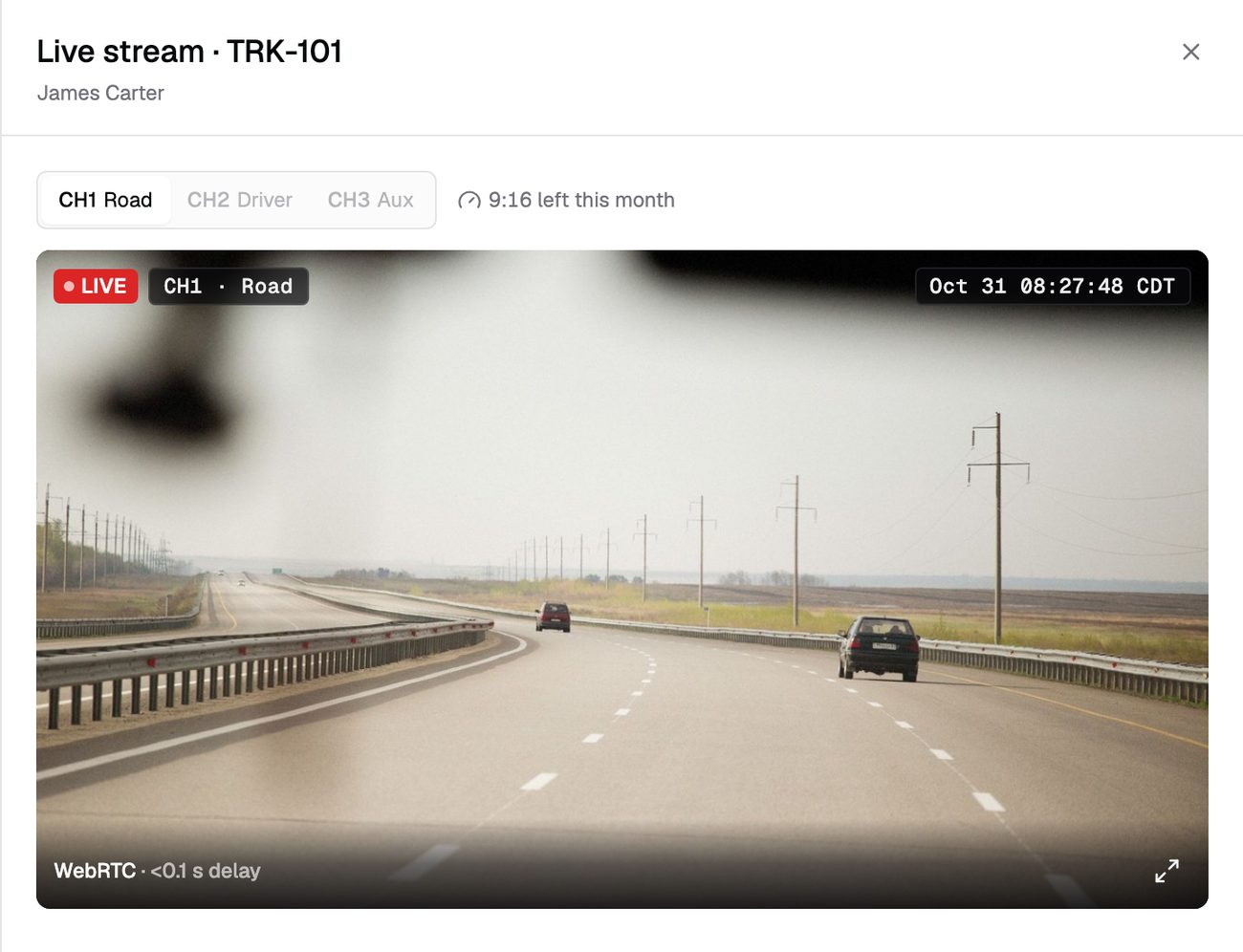
It sees the risk before you do
Collision and driver-monitoring detection run on the camera itself. The driver hears a voice alert in the cab.
- On the road. Forward collision, close following, lane departure and pedestrian warnings.
- In the cab. Distraction, phone use, fatigue, yawning, eyes closed, head down, smoking, drinking and no driver.
- 20 event types in all. Driving and safety events share one list, with video.
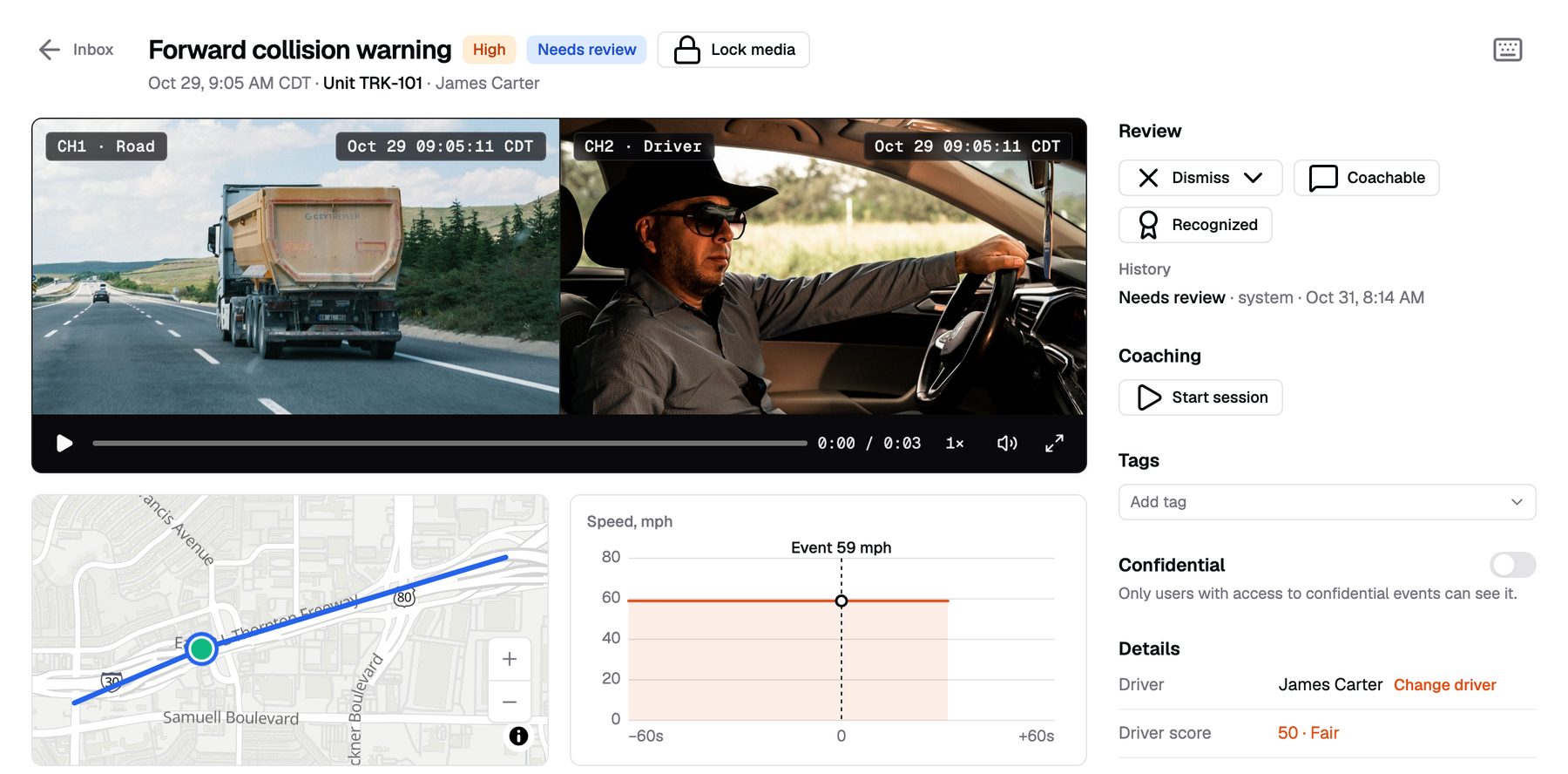
Every event arrives with the right clip
When the camera flags an event, the clip comes from the camera that matters. It lands in your Safety Inbox with a severity and the driver's name.
- Road events, road video. Forward collision and close following attach the road camera.
- Cab events, cab video. Phone use and fatigue attach the driver-facing camera.
- Both for the big ones. Collision, harsh driving and SOS attach road and cab.
- You choose the channels. Turn off a camera's upload for any event type in settings.
Harsh driving, speeding and SOS too
The camera also reports how the truck is driven. These events follow the same path to your inbox.
- Harsh driving. Acceleration, braking and turns.
- Collision. Marked critical, with road and cab video.
- Speeding. Over the device limit and over the posted limit.
- SOS. An SOS from the cab shows up as critical.
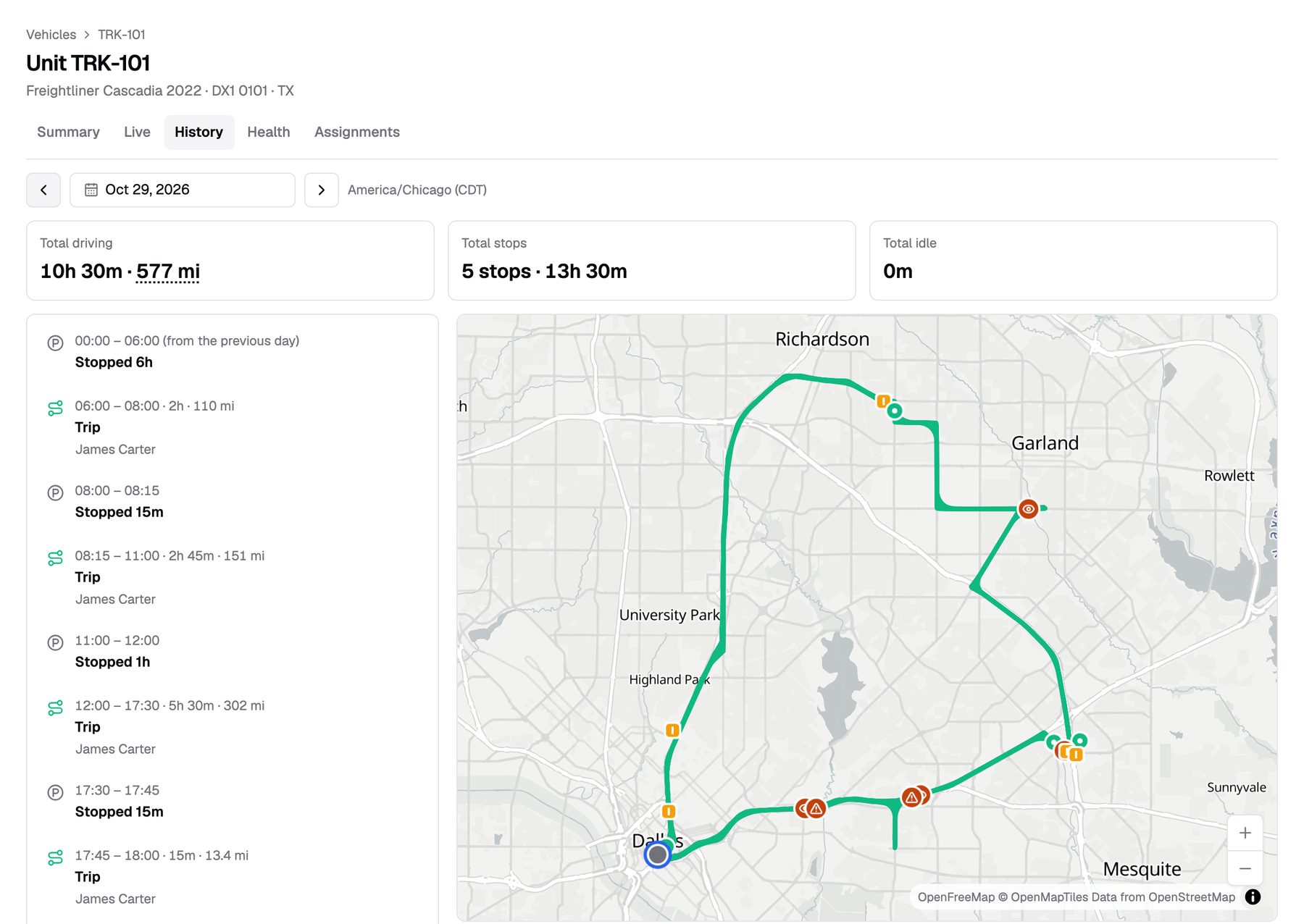
Cab video only for the people you choose
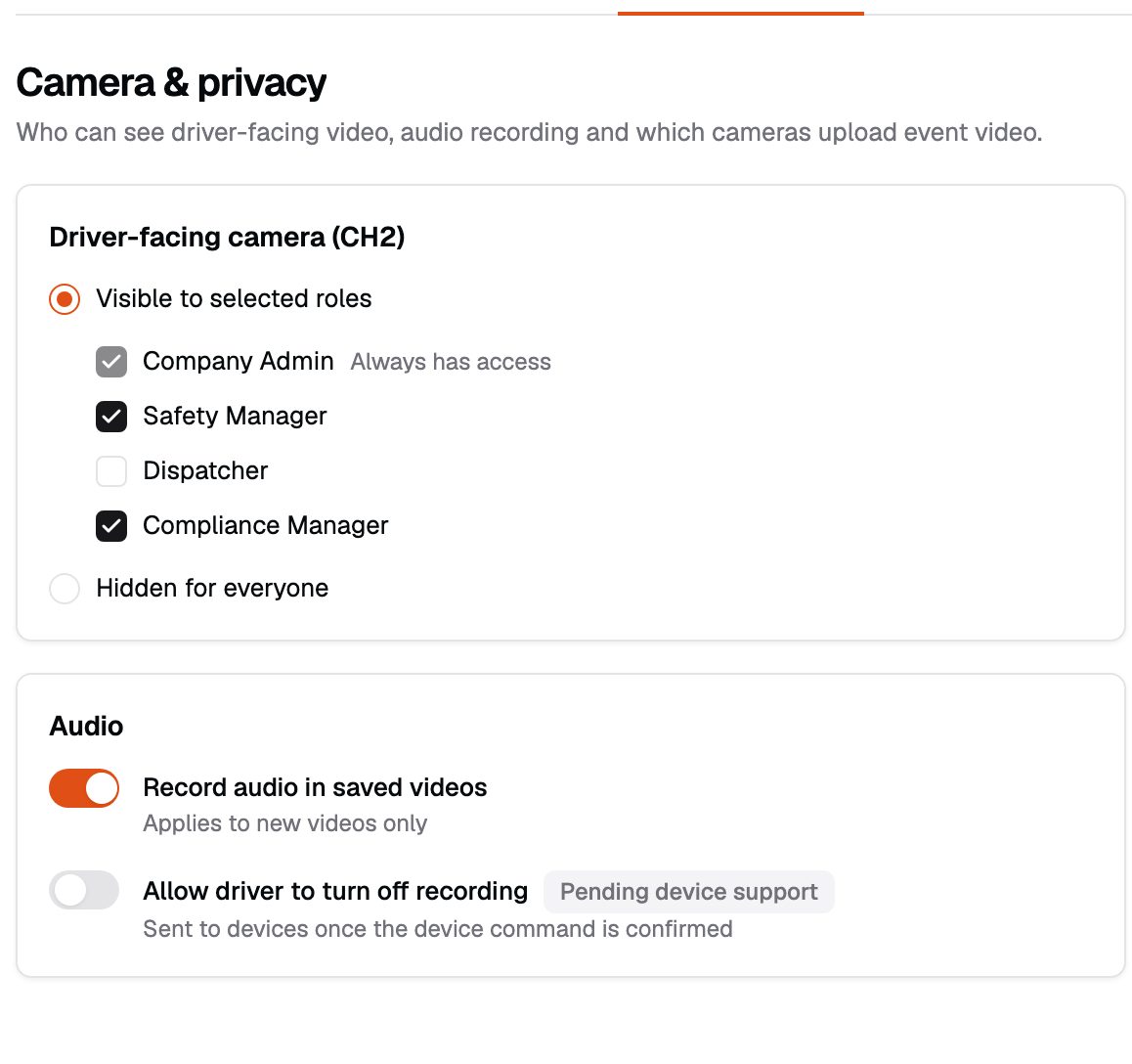
You decide which roles see the driver-facing camera. Dispatchers see the road video and the event, not the cab, unless you allow it.
- Set by role. Safety managers and admins by default; tick or untick the rest.
- Hidden for everyone. One switch hides cab video from every role.
- Audio on or off. Choose whether saved video records sound.
What the dash cam doesn't do
- Live view isn't recorded. Request a clip from the SD card to keep anything.
- The detection list is the camera's. We don't add or train detection models.
- Not an hours-of-service device. Keep your ELD; Roudiy runs alongside it.
From quote to live in three steps
Get pricing
Tell us your fleet size. We send pricing and book your install.
We install
Our technician installs the kit and checks every camera before leaving.
You're live
The truck shows up in your dashboard the same day.
Billing starts the day a kit passes its install check.
Does the driver see or hear anything?
The camera plays voice alerts in the cab. There is no screen or app for the driver.
Can I turn off the driver-facing camera?
You can hide cab video from every role with one setting. Driver-monitoring events then show road video only.
Which events does it detect?
20 types across the road, the cab and driving. The full list is on our FAQ page.
Ready to see your fleet?
Tell us about your trucks and we will put pricing in writing.
or call (855) 555-0142